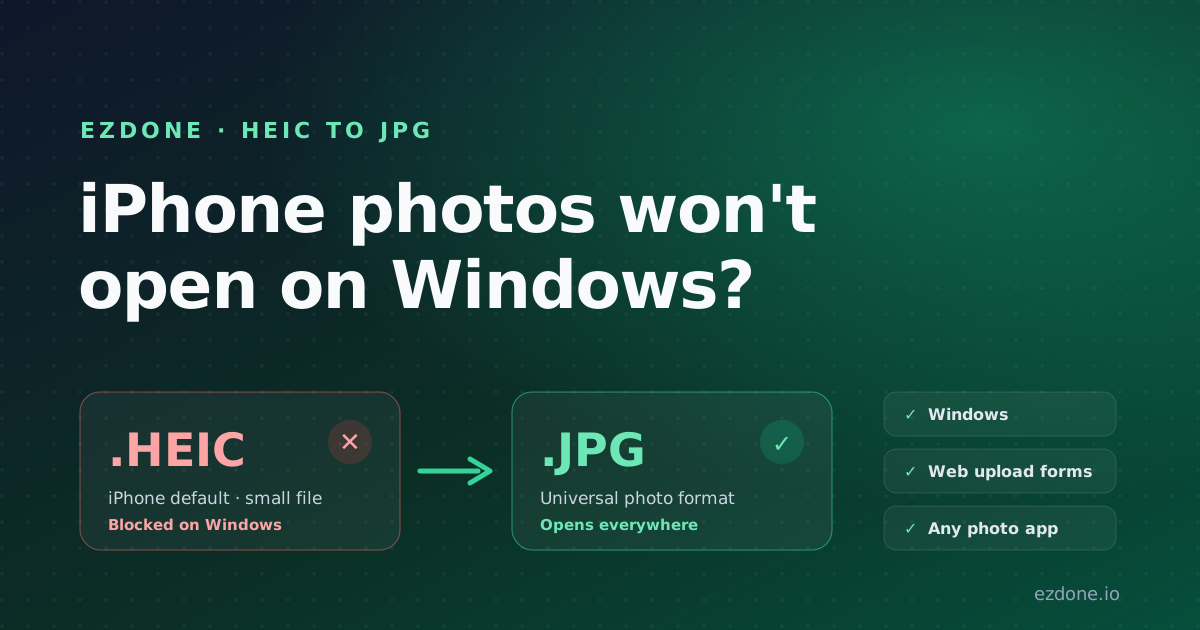
HEIC to JPG: Why Your iPhone Photos Won't Open on Windows (and How to Fix It Free)
Your iPhone saves photos as HEIC, which Windows often can't open. Here's why, and how to convert HEIC to JPG in seconds with no upload and no software.

ezDone
· 4 min read
You emailed yourself a photo from your iPhone, opened it on your Windows PC, and got an error, or a file your apps simply refuse to display. The culprit is a small four-letter extension: .HEIC.
Here's why it happens and how to fix it in under a minute.
Key Takeaways
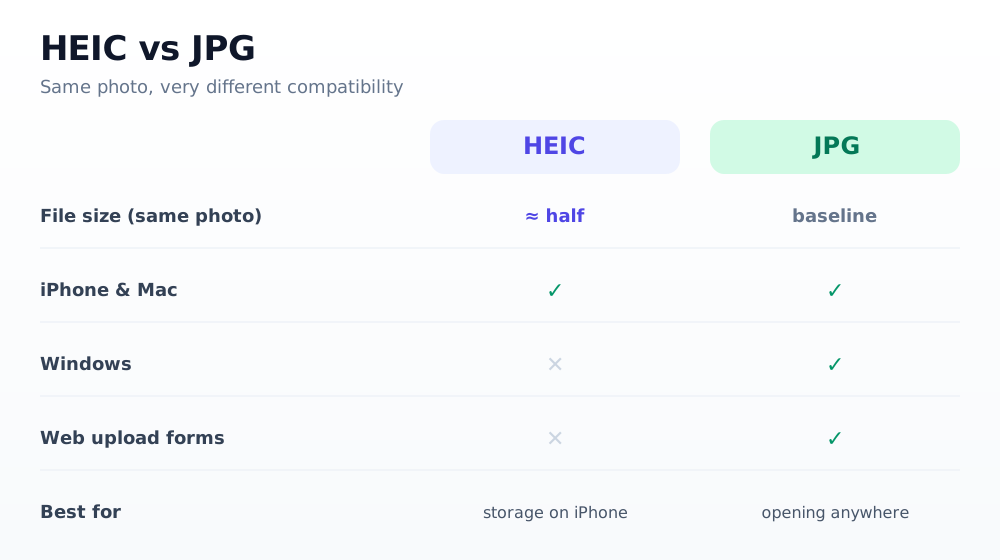
- iPhones save photos as HEIC by default, which stores the same quality as JPG in roughly half the file size.
- Windows and many apps still expect JPG, so HEIC files often won't open.
- Converting HEIC to JPG fixes compatibility instantly, and ezDone does it in your browser with no upload.
- To stop making HEIC files, switch your iPhone camera to "Most Compatible."
Why does my iPhone save photos as HEIC?
Since iOS 11, iPhones have saved photos as HEIC (High Efficiency Image Container) by default. The reason is efficiency: HEIC stores roughly the same image quality as a JPG in about half the space, so you fit twice as many photos on your phone.
The downside shows up the moment you move those photos off the phone.
Why won't HEIC files open on Windows?
HEIC support still isn't universal. Apple devices handle it natively, but Windows, plenty of desktop software, many web apps, and lots of upload forms still expect the older, universal JPG. So when you copy a .HEIC file to a PC, it may throw an error or simply refuse to preview.
This isn't a sign that anything is broken. HEIC is just newer than some of the software you're using.
How do you convert HEIC to JPG for free?
The quickest fix is to convert the file to JPG, which opens everywhere: every operating system, every photo app, every upload form. You could install desktop software or email the photo to a server-based converter, but your photos are personal, and you shouldn't have to hand them to a stranger's cloud just to change a format.
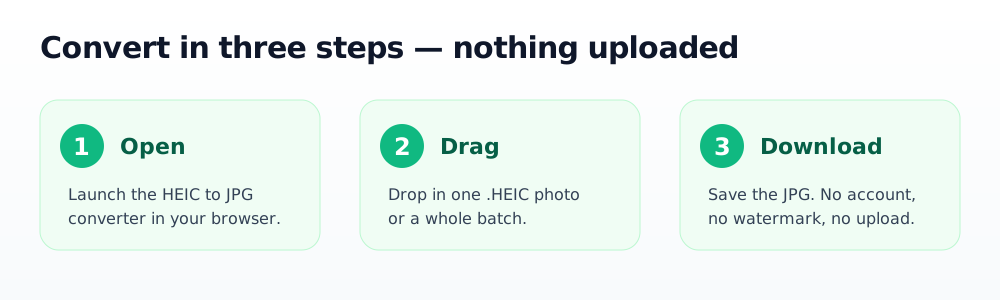
ezDone converts HEIC to JPG entirely in your browser, so the photo never leaves your device:
- Open the HEIC to JPG converter.
- Drag in your .HEIC photo, or several at once.
- Download the JPG. No upload, no account, no watermark.
Because it runs locally, it keeps working even if you go offline after the page loads, and your photos are never transmitted anywhere. Converting a whole camera roll? The same private workflow handles batches.
How do you stop your iPhone from making HEIC files?
If you'd rather skip the conversion step going forward, tell your iPhone to shoot JPG instead. Open Settings, then Camera, then Formats, and choose "Most Compatible."
Your phone will use slightly more storage, but every new photo will open anywhere without conversion. Your existing HEIC photos still need converting, so keep the HEIC to JPG converter handy for those.
The bottom line
HEIC isn't broken. It's just newer than some of the software you rely on. When you hit a wall, convert HEIC to JPG and the problem disappears, with nothing to install and nothing uploaded.
Frequently asked questions
Why can't I open HEIC files on Windows?
HEIC is the format iPhones use by default, and many Windows apps don't support it out of the box. The simplest fix is to convert the file to JPG, which every operating system and app can open. ezDone does this in your browser with no upload.
Does converting HEIC to JPG reduce quality?
There's a small change because JPG uses different compression, but for normal viewing and sharing it isn't noticeable. You keep your original HEIC files, so you can always convert again at a different setting if you ever need to.
Can I convert HEIC to JPG without uploading my photos?
Yes. ezDone's HEIC to JPG converter runs entirely in your browser, so your photos are processed on your own device and never uploaded. It even works offline once the page has loaded.
How do I convert many HEIC photos at once?
Open the HEIC to JPG converter and drag in multiple files together. They're all converted locally on your device. For shrinking large batches of images, the bulk image compressor works the same private way.
- heic
- image conversion
- iphone
- how-to
Free, private, browser-based tools
Convert, compress, and generate, all in your browser, no upload, no account.
Explore the tools