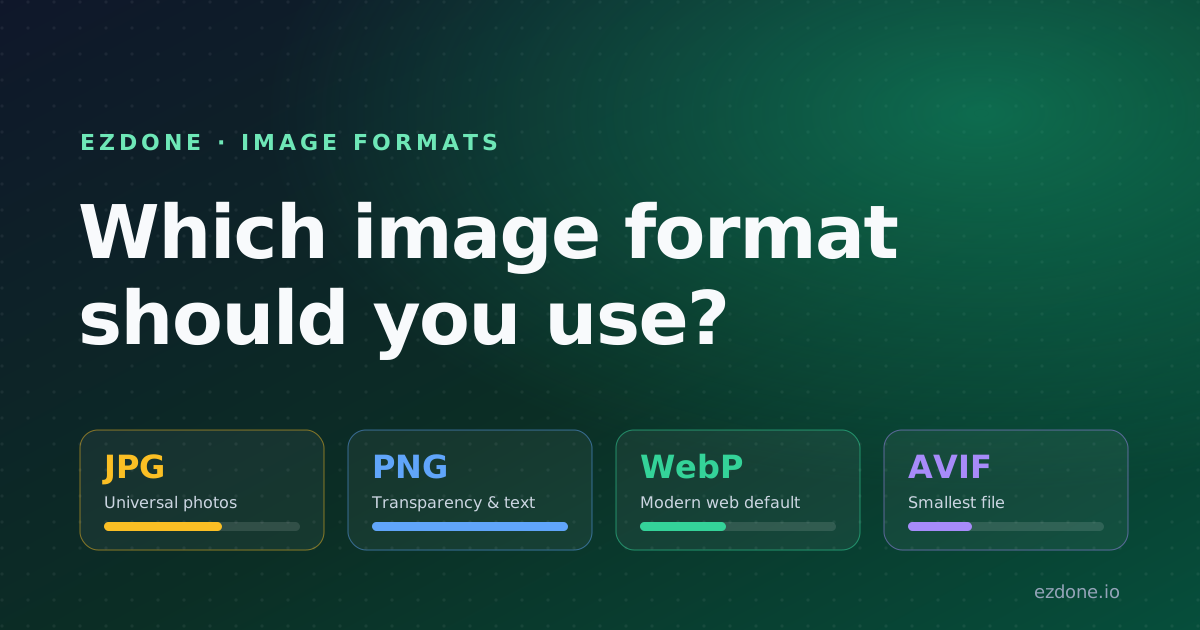
JPG vs PNG vs WebP vs AVIF: Which Image Format Should You Use?
A plain-English guide to JPG, PNG, WebP, and AVIF: what each is best at, when to use which, and how to convert between them free, with no upload.

ezDone
· 7 min read
You export an image, drop it somewhere, and it looks blurry, weighs several megabytes, or loses its transparent background. Almost always, the culprit isn't your editor. It's the file format. Pick the right one and the same picture looks sharper and loads faster. Pick the wrong one and you're stuck with bloat or lost quality.
Four formats cover nearly everything you'll run into: JPG, PNG, WebP, and AVIF. Here's what each does well, when to reach for it, and how to switch between them in seconds.
Key Takeaways
- Use JPG for photos that must open anywhere, and PNG when you need transparency or crisp text and lines.
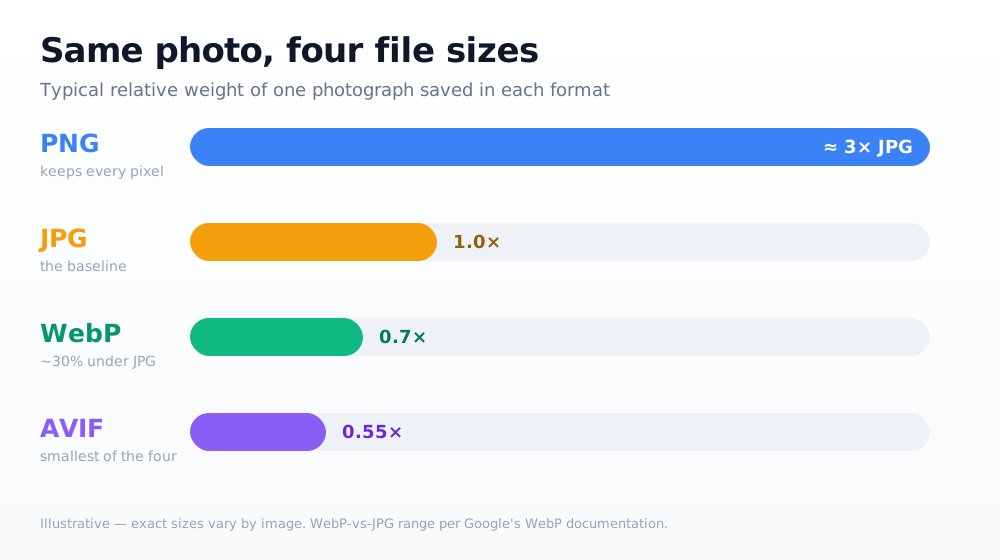
- WebP runs about 25–34% smaller than JPG at the same quality (Google's WebP documentation) and now works in every modern browser.
- AVIF usually compresses even further than WebP. The trade-off is slower encoding and slightly newer support.
- You can convert between all four in your browser, with no upload, using ezDone's file converter.
What's the difference between JPG, PNG, WebP, and AVIF?
JPG and PNG are the two classics (lossy photos versus lossless graphics), while WebP and AVIF are the modern formats that do both jobs at smaller file sizes. The newer formats save bandwidth. The older ones win on universal compatibility.
Here's the one-line version of each:
- JPG (JPEG): Lossy compression built for photographs. Small files, no transparency, opens literally everywhere.
- PNG: Lossless compression with transparency. Ideal for logos, screenshots, and anything with sharp edges or text. Larger files.
- WebP: Google's modern format. Handles both lossy and lossless, supports transparency and animation, and is noticeably smaller than JPG or PNG.
- AVIF: The newest of the four, based on the AV1 video codec. Usually the smallest file at a given quality, with support for transparency and HDR.
The rest of this guide breaks down when each one is the right call.
When should you use JPG?
Reach for JPG when you're saving a photograph and compatibility matters above all else. JPG uses lossy compression, which discards detail your eye barely notices to keep files small. That makes it a good fit for the millions of subtle colors in a real-world photo.
What JPG is great at:
- Photos for email, most websites, and older software or devices.
- Anywhere "it has to open, no exceptions" is the priority.
Where JPG falls short:
- No transparency. A JPG can't have a see-through background.
- Visible artifacts around sharp edges, text, and flat color, so it's a poor choice for logos or screenshots.
- Generation loss. Every time you re-save a JPG, it degrades a little more.
Got a JPG logo that needs a transparent background? The fix is to convert it to PNG rather than fight JPG's limits.
When should you use PNG?
Use PNG whenever you need a transparent background or pixel-perfect edges. PNG is lossless, so it stores every pixel exactly, with no fuzz around text, lines, or solid color. That precision is why it's the default for graphics rather than photos.
PNG shines for:
- Logos, icons, and illustrations with transparency.
- Screenshots and diagrams that need crisp text.
- Any image you'll edit repeatedly, since re-saving never degrades it.
The trade-off is size. A photo saved as PNG can easily run three to six times larger than the same photo as JPG, because lossless compression keeps everything. For photographs, that's wasted weight, and it's exactly the gap WebP and AVIF were built to close.
When should you use WebP?
WebP is the best default for the modern web. Per Google's WebP documentation, lossy WebP files run about 25–34% smaller than comparable JPGs, and lossless WebP is roughly 26% smaller than PNG, at quality most people can't tell apart. It supports transparency and animation too, so it covers both the JPG and PNG use cases in one format.
Why WebP is usually the smart pick for websites:
- Smaller files mean faster pages and lower bandwidth bills.
- One format handles photos, transparent graphics, and simple animation.
- Every current browser (Chrome, Firefox, Safari, and Edge) displays it.
The only real reason to skip WebP is reaching very old software that predates it, which is rarely a concern in 2026. Converting your photos from PNG to WebP is one of the quickest wins for a faster site.
When should you use AVIF?
Choose AVIF when you want the smallest possible file and your audience is on modern browsers. Built on the AV1 video codec, AVIF typically compresses further than WebP at the same visual quality. It's often noticeably smaller, though the exact savings depend on the image. It also supports transparency, HDR, and wide color gamut.
AVIF is worth it when:
- Image weight is your priority, like large hero images or image-heavy galleries.
- You serve a current audience and can fall back to WebP or JPG for older clients.
Two honest trade-offs:
- Encoding is slower than JPG or WebP, so big batch jobs take longer.
- Support is newer. It's broad in 2026 (Chrome, Firefox, Edge, and recent Safari), but not as bulletproof as JPG.
A common pattern is to serve AVIF with a WebP or JPG fallback: the smallest file for most visitors, nothing broken for the rest.
Quick decision guide
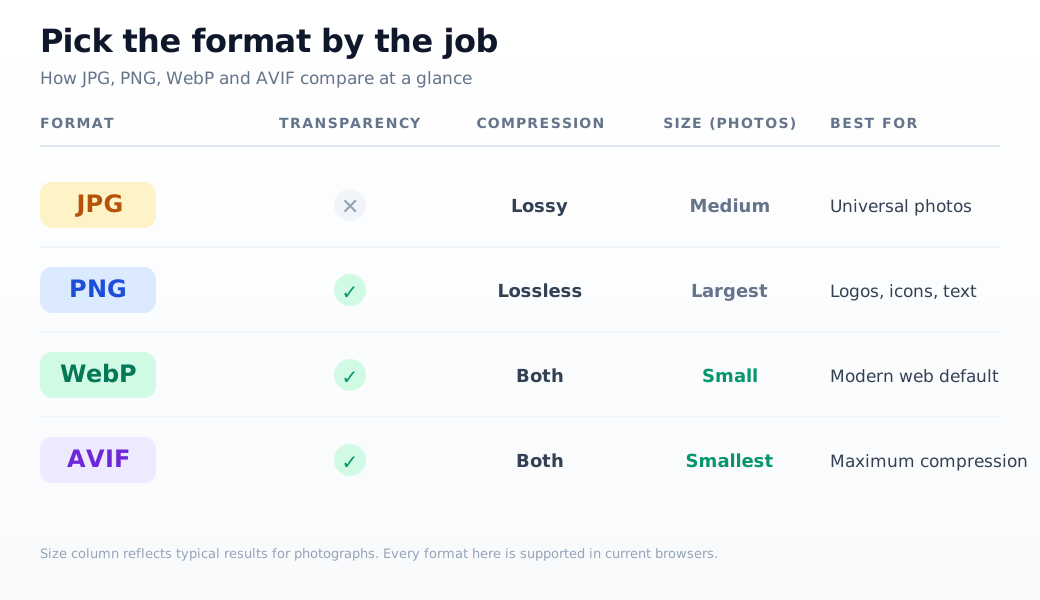
Not sure which to grab? Match the job to the format:
- A photo for the web: WebP, or AVIF if you want it even smaller.
- A photo that must open anywhere: JPG.
- A logo, icon, or screenshot: PNG, or WebP for a smaller transparent file.
- The smallest file you can get, modern audience: AVIF.
- An image you'll keep editing: PNG while you work, then export to WebP or JPG at the end.
When in doubt for a website, WebP is the safest modern default. It's small, flexible, and universally supported.
How do you convert between image formats for free?
You don't need to install software or hand your images to a server to switch formats. ezDone's tools run entirely in your browser, so your files are never uploaded. They're converted on your own device, full stop.
- Change one image's format: Open the file converter and pick your target, like JPG to PNG or PNG to WebP.
- Shrink a batch of photos: Drop a whole folder into the bulk image compressor to cut file sizes without a visible quality drop.
Because the work happens locally, it's fast, private, and keeps going even if you disconnect after the page loads.
Frequently asked questions
Is WebP better than JPG?
For most websites, yes. WebP files run roughly 25–34% smaller than JPGs at similar quality (Google's WebP documentation), and WebP also supports transparency, which JPG can't. JPG still wins only when you need maximum compatibility with very old software or hardware.
Does converting JPG to PNG improve quality?
No. PNG is lossless, but it can't rebuild detail that JPG already threw away. Converting JPG to PNG freezes the current quality and adds transparency support. It's handy, but it won't make a blurry JPG sharp again.
Is AVIF supported in all browsers?
As of 2026, AVIF works in every major modern browser, including Chrome, Firefox, Edge, and recent Safari. For very old browsers, serve a WebP or JPG fallback so everyone still sees an image.
Which image format is smallest?
For photos, AVIF is usually smallest at a given quality, then WebP, then JPG, with PNG the largest. The exact order shifts image to image, but the modern formats (AVIF and WebP) consistently beat the classics on photographs.
Will I lose quality converting to WebP or AVIF?
Only with lossy settings, and usually not in a way you'd notice. Both formats also have lossless modes. Converting in your browser with ezDone lets you keep the original and compare before you commit.
The bottom line
There's no single "best" image format. There's only the best one for the job. Use JPG for universal photos, PNG for transparency and sharp graphics, WebP as your modern web default, and AVIF when you want the smallest file for a current audience.
Whenever you need to switch, convert your images with ezDone: free, in your browser, with nothing uploaded.
- image formats
- webp
- avif
- image conversion
- how-to
Free, private, browser-based tools
Convert, compress, and generate, all in your browser, no upload, no account.
Explore the tools